Showing posts with label VirtualBox. Show all posts

Monday, June 21, 2010

Configuring a New Oracle SOA Domain on Oracle Enterprise Linux

Introduction

With the current trend of having 64 bit as the new desktop standard, then you would most likely come into a situation where you have a hard time deciding what OS to buy that can support your software development tasks, while not being left behind. That OS selection decision is made simpler by the advent of Virtualization wherein you can have multiple OS on a single hardware machine.
In this series, I will share with you how I was able to set-up and run Oracle SOA Suite on my Windows 7 Professional 64 bit OS through Oracle VM VirtualBox.

This is Part V of the following series:
  1. Setting-up Oracle Enterprise Linux on Oracle VM VirtualBox 3.2.4
  2. Installing Java 1.6 on Oracle Enterprise Linux
  3. Installing Weblogic 10.3.3 on Oracle Enterprise Linux
  4. Installing Oracle SOA Suite 11.1.1.3 on Oracle Enterprise Linux
  5. Configuring a New Oracle SOA Domain on Oracle Enterprise Linux

Prerequisites

  1. Installed Oracle VM VirtualBox.
  2. Installed Oracle Enterprise Linux (OEL) on VirtualBox as described in the Part I of this series.
  3. Installed Java 1.6.0_20 on OEL as described in Part II of this series.
  4. Installed WebLogic 10.3.3 as described in Part III of this series.
  5. Installed Oracle SOA Suite 11.1.1.3 as described in the Part IV of this series.
  6. You should have a valid database somewhere which is properly configured with the Repository Creation Utility (RCU).

Configuration Steps

Navigate to "MIDDLEWARE_HOME/Oracle_SOA1/common/bin" directory.
Right-click inside the directory and select "Open in Terminal".
Enter "./config.sh".
Select "Create a new WebLogic domain" and Next.
Check the appropriate products as shown in the screenshot.
Accept default domain name and directories.
Next.
Enter your password for weblogic.
Ensure that the Java 1.6 64 bit that we installed in the Part II of this series is available and selected in the list.
Next.
Select all the schema and provide the appropriate values for the following:
  • Service Name
  • Hostname
  • Password
  • Port

Next.
Next.
Next.
Create.
Done.

Running and Testing the Servers

Navigate to "MIDDLEWARE_HOME/user_projects/domains/base_domain/bin".
Right-click then select "Open in Terminal".
To start the Admin Server, enter "./startWebLogic.sh". (Note: Case-sensitive)
To start the SOA Server, Click File>Open Tab to open a new terminal tab on the same directory.
Enter "./startManagedWebLogic.sh soa_server1".
Enter username: "weblogic" and the password you entered in the steps above.
The SOA Server is already running when you see in the log "SOA Platform is running and accepting request".
If you are connected to a network then you can test logging-in to enterprise manager from a remote pc or from your host OS. But before so, we need to know the ip of our Oracle Enterprise Linux virtual machine.
To know the ip, in a terminal window, enter "/sbin ifconfig".
Get the ip information for use in the step below.
Open a new browser and enter "http://the_ip_above:7001/em"
Successfully log-in to enterprise manager from remote pc.

Sunday, June 20, 2010

Installing Oracle SOA Suite 11.1.1.3 on Oracle Enterprise Linux

Introduction

With the current trend of having 64 bit as the new desktop standard, then you would most likely come into a situation where you have a hard time deciding what OS to buy that can support your software development tasks, while not being left behind. That OS selection decision is made simpler by the advent of Virtualization wherein you can have multiple OS on a single hardware machine.
In this series, I will share with you how I was able to set-up and run Oracle SOA Suite on my Windows 7 Professional 64 bit OS through Oracle VM VirtualBox.
This is Part IV of the following series:
  1. Setting-up Oracle Enterprise Linux on Oracle VM VirtualBox 3.2.4
  2. Installing Java 1.6 on Oracle Enterprise Linux
  3. Installing Weblogic 10.3.3 on Oracle Enterprise Linux
  4. Installing Oracle SOA Suite 11.1.1.3 on Oracle Enterprise Linux
  5. Configuring a New Oracle SOA Domain on Oracle Enterprise Linux

Prerequisites

  1. Installed Oracle VM VirtualBox.
  2. Installed Oracle Enterprise Linux (OEL) on VirtualBox as described in the Part I of this series.
  3. Installed Java 1.6.0_20 on OEL as described in Part II of this series.
  4. Installed WebLogic 10.3.3 as described in Part III of this series.

Enabling a regular user to enter "sudo" command

Login as a regular user(in my case "pino").
Open a new Terminal window.
Enter "su" to login as root.
Enter password for root.
Modify the sudoers file.
Enter "nano /etc/sudoers".
(Warning! Be careful in editing the sudoers file.)
(The sudoers file should be edited using the visudo command but since I am not so familiar with it, I used nano.)
Just after the line "root ALL=(ALL) ALL" add like "pino ALL=(ALL) ALL"
Save changes on exit.

Installation Steps for Oracle SOA 11g PS1

Put the unzip version of the Oracle SOA 11.1.1.2 installer in the installer folder we created in the Part III of this series (in my case "/home/pino/installers").
Browse the Disk1 folder of the installer.
Right click inside the Disk1 directory and select "Open in Terminal".
Enter "./runInstaller -jreLoc $JAVA_HOME"
Accept default directory
A prompt appears. Leave the prompt at ease then open a new Terminal window from the menu- Applications>Accessories>Terminal.
Enter "sudo sh /home/pino/oraInventory/createCentralInventory.sh".
You should be able to read "The execution of the script is complete".
Go back to the prompt window and press "Ok"
Next.
Next.
Next.
Install.
Next.
Finish. We are done installing the Oracle SOA Patchset 1 but we need yet to upgrade to Patchset 2.

Installation Steps for Oracle SOA 11g PS2

Put the unzip version of Oracle SOA 11.1.1.3 Patchset installer into the installer directory we created in Part III of this series.
Browse the Desk1 folder of the installer.
Right click and then select "Open in Terminal".
Enter "sh runInstaller -jreLoc $JAVA_HOME"
Next.
Ensure that selected Middleware Home is the same as the one we specified when we installed the Oracle SOA Patchset 1.
Next.
Install.
Next.
Finish. We are done upgrading to Patchset 2.

Thursday, June 17, 2010

Setting-up Oracle Enterprise Linux 5.5 on Oracle VM VirtualBox 3.2.4

Introduction

With the current trend of having 64 bit as the new desktop standard, then you would most likely come into a situation where you have a hard time deciding what OS to buy that can support your software development tasks, while not being left behind. That OS selection decision is made simpler by the advent of Virtualization wherein you can have multiple OS on a single hardware machine.
In this series, I will share with you how I was able to set-up and run Oracle SOA Suite on my Windows 7 Professional 64 bit OS through Oracle VM VirtualBox.
This is Part I of the following series:

  1. Setting-up Oracle Enterprise Linux 5.5 on Oracle VM VirtualBox 3.2.4
  2. Installing Java 1.6 on Oracle Enterprise Linux
  3. Installing Weblogic 10.3.3 on Oracle Enterprise Linux
  4. Installing Oracle SOA Suite 11.1.1.3 on Oracle Enterprise Linux
  5. Configuring a new Oracle SOA 11.1.1.3 Domain on Oracle Enterprise Linux
This steps have been done on Windows 7 Professional 64 bit but this should be applicable to other operating systems as well. As a matter of fact, the host OS is currently out of context.
You maybe wondering why Oracle Enterprise Linux? Well, the answer is simple- All Oracle products are certified on Oracle Enterprise Linux and its FREE.

Prerequisites

  1. Download and Install Oracle VM VirtualBox 3.2.4.
  2. Download the Oracle Enterprise Linux 5.5 Installers and burn it into CDs.

VirtualBox Pre-Configuration

Start VirtualBox and create a new virtual machine named "Oracle Enterprise Linux"
Set the allocated RAM to not less than 2GB. You can increase this later if needed.
In my case, having tested it, I need to set the allocated memory to 3GB to make my Oracle SOA workable. If you are running Windows 7 and you are worried that there is not enough memory left for your host OS then take advantage of Windows 7 ReadyBoost to add some memory from flash drives.
Create a new hard disk
Ensure to set the hard disk name to "Oracle-Enterprise-Linux" just to avoid potential issues related to having spaces in directory names. (Maybe it doesn't matter but let us just play safe.)
Allocate at least 15GB because Weblogic and Oracle SOA Suite is quite huge.
Click "Finish".
Your new virtual machine is now listed on VirtualBox.
We need to enable the "Enable IO APIC" from the System settings to install the OEL 5.5 from the CD/DVD drive.
In the Network settings, enable "Enable Network Adapter" and select "Bridged Adapter" in the "Attached To" field.


Point the empty IDE Controller to the CD/DVD Drive. If you have the installer in your hard disk instead of a DVD or CDs, then you can try pointing the empty IDE Controller to the location of your DVD_INSTALLER.iso file. (I have not tried this though.)

Oracle Enterprise Linux Installation on VirtualBox

Insert the installer DVD or the 1st CD on the DVD drive then start the Oracle Enterprise Linux virtual machine in VirtualBox.
Press Enter.
Skip testing of your installers.
Next.
Next.
Next.
Select "Install Enterprise Linux" and Next.
Next.
Click Yes
Next.
Select your appropriate country and Next.
Enter the password for root.
Next.
Next.
Continue.
Forward.
Agree to the license agreement and Forward.
Disable Firewall for now. (Don't follow my configuration here. With firewall enabled, I was not able to connect to weblogic console from my host OS.)
Forward.
Forward.
Set time and Forward.
Create your username and password.
Forward.
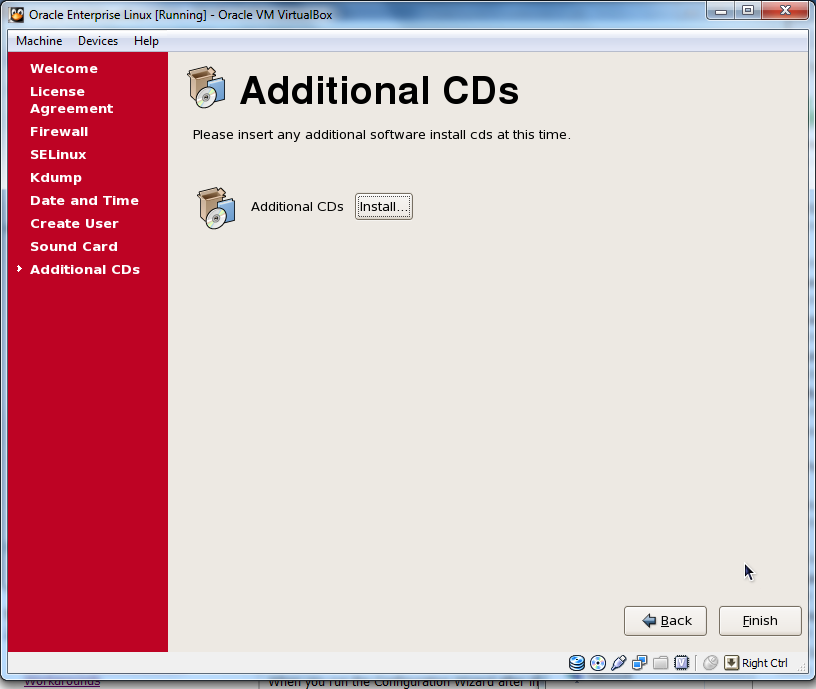
Finish. Congratulations! Your done!
Lets try our machine by login in. Enter your username.
Enter your password.
Viola! We are running linux! Wow!